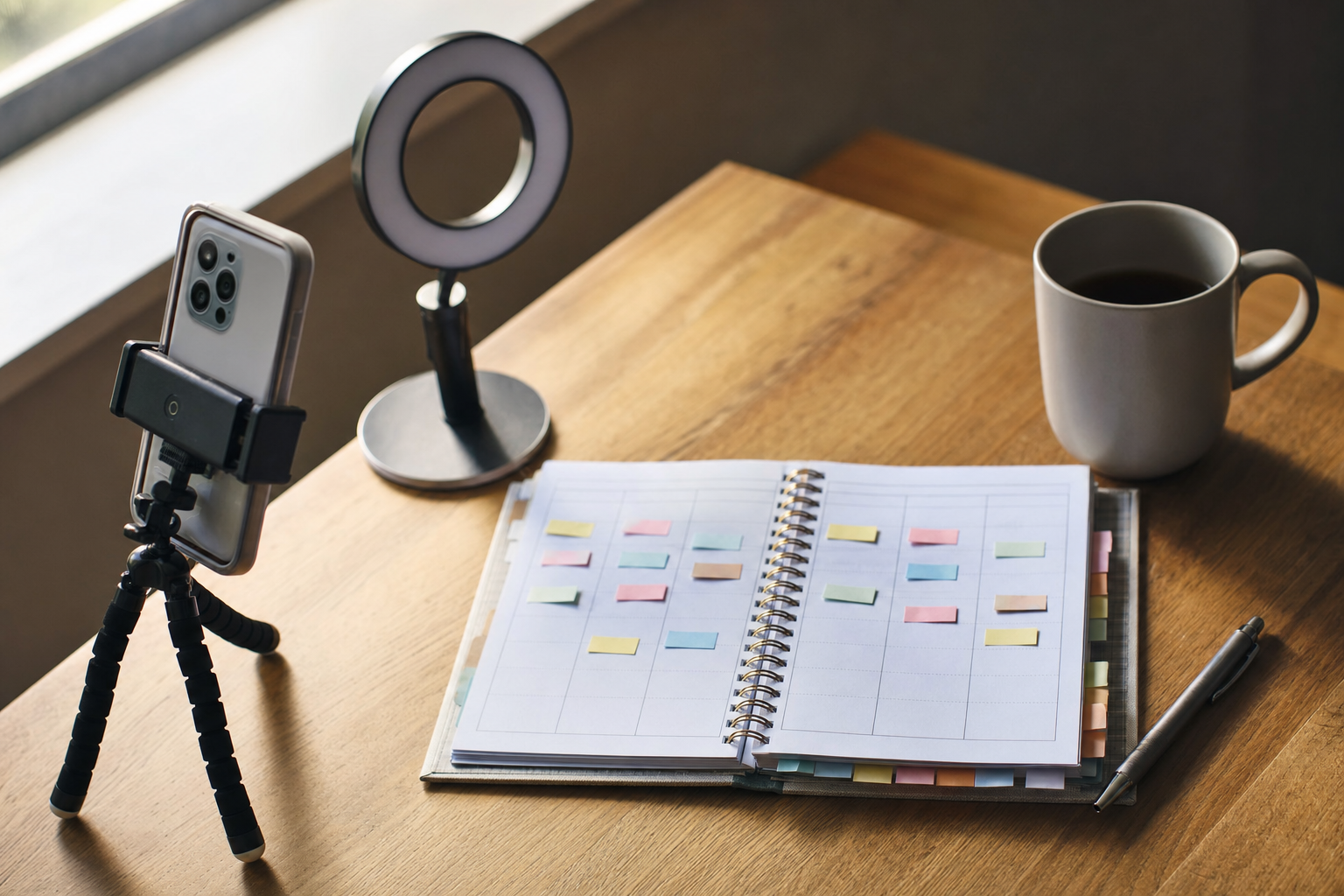
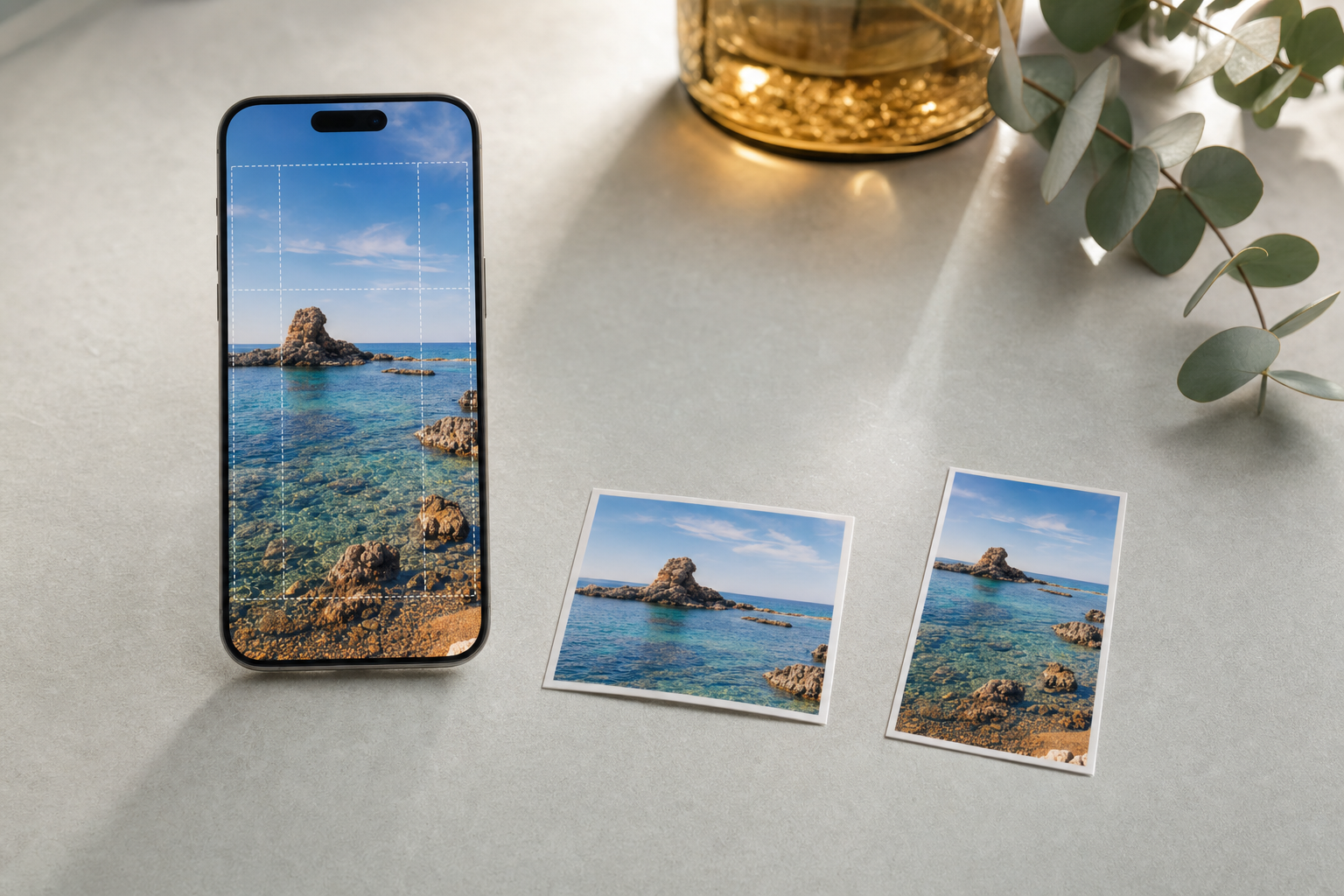
You wrote a caption you were proud of, queued the Reel, and hit schedule. Then it went live — and the hook was cut off after "3 things nobody tells you abo…", the vertical video showed up with black bars, and the first line of your caption got truncated right before the payoff. If you're a solo founder or small brand running your own accounts, this stings twice: you lost the post, and you don't have a teammate to catch it for you.
This guide is about preventing exactly that. A platform-accurate preview means what you see while scheduling matches what your audience actually sees in their feed. Below, we'll cover what breaks between draft and publish, how each platform crops and truncates, and a repeatable pre-publish check you can run in under a minute — so your best content never gets ruined by a technical detail you couldn't see coming.
Key takeaways
- A social media post preview before publishing live only helps if it's platform-accurate — a generic thumbnail hides the exact crops and truncation that break posts.
- Every platform crops images and video differently (feed vs. profile grid vs. Reels), and captions get cut at different character counts.
- The most common failures are cropped subjects, wrong aspect ratios, truncated first lines, broken links, and mismatched cover frames.
- Build a fixed pre-publish checklist so the review is muscle memory, not guesswork.
- Preview once per platform — cross-posting the same asset everywhere is where most crops go wrong.
Why What You See Isn't Always What Your Audience Sees
The gap between your draft and the live post comes down to how each network renders content. A scheduling screen might show your full caption and the entire uncropped image, but the feed applies its own aspect ratios, safe zones, and character limits. If your preview doesn't simulate those rules, you're essentially publishing blind and hoping the defaults line up with your design.
This matters more for small teams because there's no second set of eyes. A large brand has a reviewer; you have yourself at 11pm. A preview that mirrors the real feed becomes your reviewer — it catches the things your eyes glaze over after staring at the same post for twenty minutes.
- Aspect ratio: feeds favor different shapes (square, 4:5 portrait, 9:16 vertical), and the platform will crop to fit.
- Safe zones: Reels and Stories overlay UI (captions, buttons, usernames) on top of the bottom and right edges of your video.
- Caption truncation: only the first line or two shows before a "more" cutoff, and the limit differs by network.
- Cover/thumbnail selection: the frame you see scrubbing isn't always the frame the grid picks by default.
- Link rendering: some networks strip or de-emphasize links in captions, changing how your CTA lands.
The Most Common Ways a Post Gets Botched
Almost every ruined post traces back to a short list of predictable failures. Knowing them by name makes them easy to scan for. Once you've been burned by a cropped face or a dead first line, you start looking for it every time — a preview just makes that check reliable instead of reactive.
- Cropped subject: the product, face, or text you centered gets sliced because the feed cropped to a taller or shorter ratio than your source file.
- Buried hook: the strongest words of your caption sit past the truncation point, so the feed shows filler before "...more."
- Wrong cover frame: a mid-blink or blurry motion frame becomes the Reel thumbnail on your grid.
- Text in the safe zone: on-screen captions overlap with platform UI and become unreadable on Reels or Stories.
- Aspect-ratio letterboxing: a landscape video gets black bars on a vertical-first surface, killing screen real estate.
- Broken or ugly links: a raw URL that doesn't render as expected, or a link that platform rules downrank.
- Emoji and formatting drift: line breaks and emoji that looked clean in the editor collapse in the live post.
Platform-by-Platform: What to Check Before You Publish
Each network has its own quirks, so a single preview across all of them isn't enough — you want to confirm per surface. Here's what to look at for the platforms most solo founders publish to. The theme is consistent: check the crop, the cover, and the caption cutoff separately for each.
- Instagram: confirm the feed crop (4:5 gives you the most vertical space), check the grid thumbnail, and make sure your caption's first line earns the tap before "...more."
- TikTok: keep text and key action out of the bottom and right safe zones where the UI sits, and verify your cover frame reads clearly at thumbnail size.
- Reels vs. feed: the same video shows differently in the Reels tab and the main feed — check both surfaces, not just one.
- Facebook: confirm link previews render the image and title you want, and that longer captions don't truncate your point.
- YouTube (Shorts): verify the vertical framing and that your title/hook is legible on a small screen.
- Cross-posting: if you push one asset to several platforms, preview each destination — the crop that works on one can fail on another.
How to Build a Repeatable Pre-Publish Check
The goal is to turn reviewing into a 60-second habit you run the same way every time, so nothing depends on you remembering. Write the checklist once, then apply it to every post. Tools that show a platform-accurate social media post preview before publishing live let you run this check inside your scheduling flow instead of exporting drafts to test posts.
- Read the caption's first line in isolation — does it stand alone before the cutoff?
- Look at the image/video crop for each platform's ratio, not your source file's ratio.
- Confirm the cover frame is sharp, on-brand, and readable as a small thumbnail.
- Check that on-screen text sits inside the safe zone for vertical formats.
- Test every link and confirm it renders the way you expect.
- Read the whole caption out loud once for typos and awkward truncation.
- Verify the scheduled time and destination account are correct before you confirm.
VibeDay is built around this workflow: you create the image, video, or carousel, see a preview that reflects how it'll appear, and schedule across your accounts from one place — with platform publishing handled through each network's approval-gated connection. If you want the shape of a modern scheduler without the enterprise price, our Buffer alternative breakdown covers how the pieces fit together.
Make Preview a Habit, Not a Rescue
Most botched posts aren't a skill problem — they're a visibility problem. You couldn't see the crop or the cutoff at the moment you approved the post. When the preview matches the live feed, the fix is baked into your normal flow instead of being a scramble after you've already published. That's the whole point: catch it once, on your screen, before thousands of people catch it in theirs.
- Preview per platform, every time — treat it as part of scheduling, not an optional step.
- Standardize your source assets (a vertical-first video, a 4:5 image) so fewer crops surprise you.
- Keep your checklist visible until it's automatic.
- When something looks off, fix the asset or caption before scheduling — don't publish and edit under pressure.
What does a platform-accurate preview actually mean?
It means the preview simulates how a specific network will render your post — the exact crop, aspect ratio, cover frame, and caption truncation — rather than showing a generic thumbnail. If the preview matches the live feed, you can trust what you see before you publish.
Why does my caption get cut off in the feed?
Feeds only show the first line or two before a "more" link, and the cutoff point varies by platform. If your hook or payoff sits past that point, most people never see it. Preview the truncated view and move your strongest words to the front.
Why does my video look cropped or have black bars?
The platform crops or letterboxes your video to fit its preferred aspect ratio. A landscape file on a vertical-first surface gets bars; a tall file may get cropped in the feed. Match your export to the destination format and preview each surface.
Can I just cross-post the same asset everywhere?
You can, but crops and safe zones differ per platform, so an asset that looks perfect on one can break on another. Preview each destination separately, even when you're reusing the same file.
Does VibeDay publish automatically once I schedule?
VibeDay schedules and publishes through each platform's official connection, which is approval-gated — so publishing follows each network's rules rather than a single unrestricted button. You preview and confirm before anything goes out.
Stop finding out about a cropped Reel or buried caption after it's live. Preview, schedule, and publish across your accounts from one place — and keep your best content looking exactly the way you designed it.
Start with VibeDay →Put your content engine on autopilot
VibeDay turns one idea into scroll-stopping posts — image, video, and carousel — captioned for every platform.
Start your free 7-day trial →